Appearance
Results
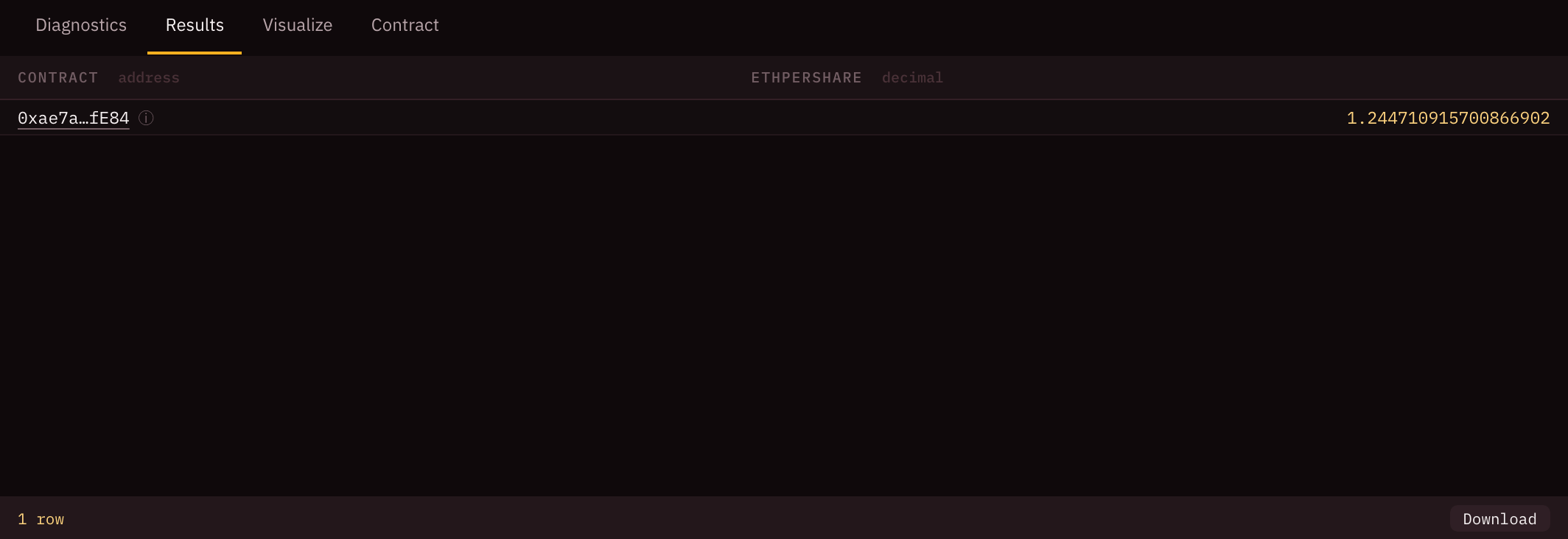
The Results tab shows a run's rows in a grid: each value as its type says, and every address one click from its contract.
Run brings it forward. Each column's heading is its name with its type under it, such as block and bigint, so you can tell a number from a string without hovering.
Large results
A large result arrives a page at a time, so a hundred thousand rows scroll as easily as ten. You can read the rows that arrived while the rest is still coming.
How each type is shown
| Type | Shown as |
|---|---|
null | null, labelled. Hover for what it means: a revert, an ABI interval without the function, an index out of range, or another condition where the chain has no value. Project revert_reason(…) beside the value to see which. |
| the empty string | ∅, which is not null. |
bigint | its exact digits, right-aligned. Hover for it with 18 decimals, as format(x, 18) would write it. |
decimal | its exact digits, right-aligned. |
address | shortened, as 0xae7a…fE84, with its chain in front when the run read more than one chain. Hover for the whole address. |
bytes | whole when short, shortened in the middle when long, with the whole value on hover. |
datetime | in UTC, as 2026-09-21T19:34:47Z. |
| array | its first item and how many more, as 5 ·· 3 more. |
| record | how many fields it has, as {3}, with their names on hover. |
A value that is too long for its column ends in …. Hover over it to see all of it.
An array or a record has a + beside it. Press it to open the value.
When a value is not what its column's type says, the grid shows it as it came, with "not a valid …" and the value on hover. Charts do not include that value.
Copy and inspect
Click an address or a bytes value to copy the whole value. The copy of an address includes its chain, as ethereum:0xae7a…. "copied to clipboard" confirms it.
Hover an address and an ⓘ appears beside it. Click it, and the Contract tab comes forward with that contract's ABI. See Contract.
Columns
Drag a column's heading to move the column, and its right edge to resize it. The grid keeps that layout for the same column names until you close the page. Keyboard shortcuts has the keys that do the same.
Download a result
Press Download at the bottom right of the grid and choose CSV, JSON or JSON Lines. You get the whole result, not only the rows on screen. Each value is written as the result stores it, so a bigint or a decimal keeps all its digits: in JSON it is a string, not a number. A null is an empty field in CSV. An array or a record is its JSON. The file is named after the saved query the run came from, or result when there is none.
Download is greyed out while the run is still going and when the result has no rows.
When a run fails
A run that could not finish shows why in place of the grid:
- a heading with the error's code and where in the query it happened
- the message
- the details that help, such as the requests that failed and the blocks they were for.